
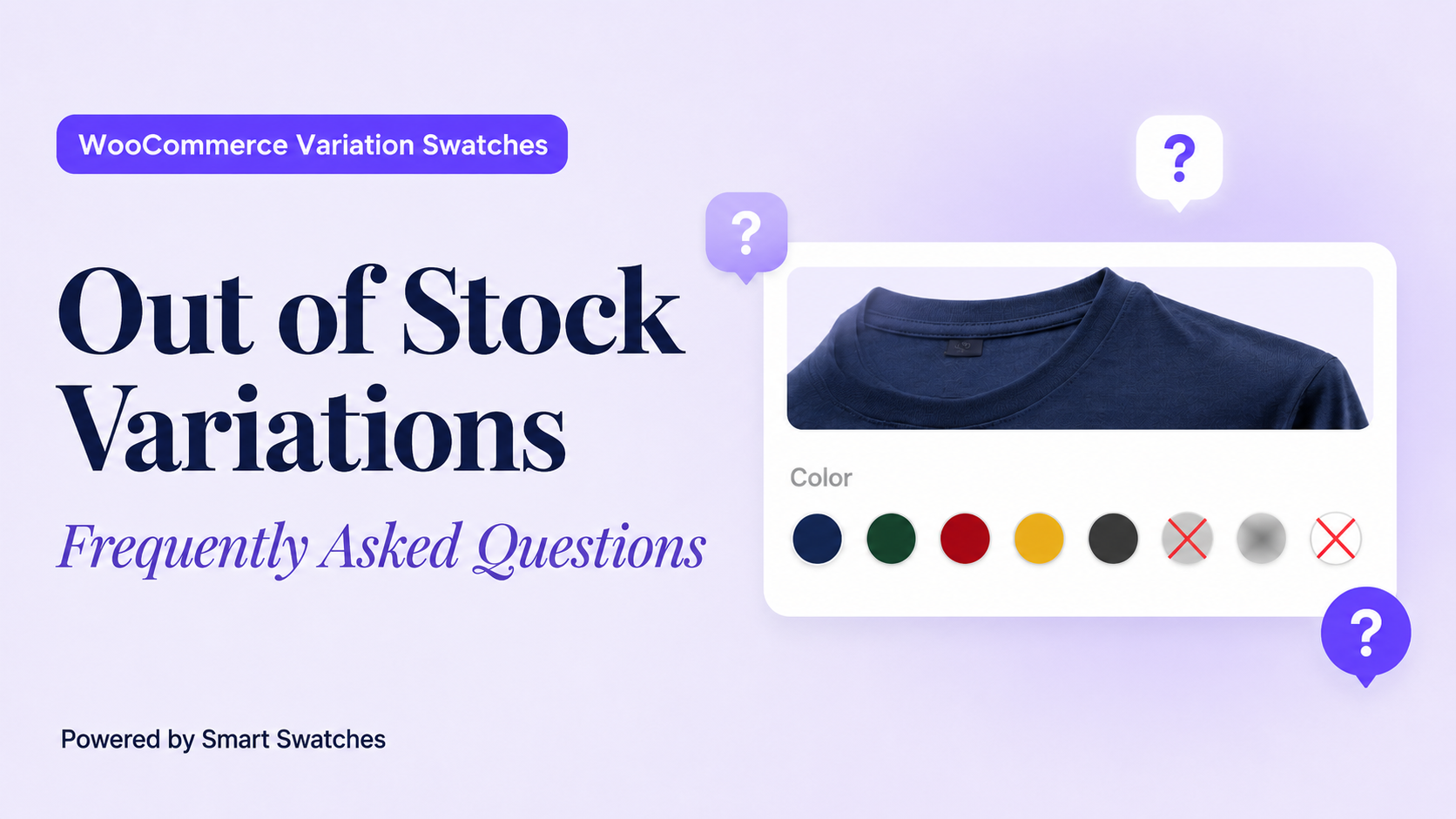

You Have Questions. We Have Straight Answers.
If you run a WooCommerce store that sells products with multiple variations — colors, sizes, materials — you have almost certainly stared at the screen wondering: what should I actually do when a variation runs out of stock? Should you hide that swatch so the page looks clean? Leave it visible but mark it somehow? And if so, how?
It is one of the most practical questions in WooCommerce store management, yet the answer is rarely explained clearly. Most plugin documentation tells you what a setting does, but not why you would choose one option over another — or what happens to your sales if you get it wrong.
This FAQ page is a companion to our full article “Out of Stock, But Not Out of Mind” and is designed for busy store owners who want quick, plain-English answers without wading through a long read. Every question below comes directly from real WooCommerce users. Every answer is grounded in how Smart Swatches plugin actually work under the hood — no guesswork, no vague advice.
Q1. Should I hide or show out-of-stock WooCommerce variations?
You should show them — almost always. Hiding out-of-stock variations feels like tidying up, but it usually costs you sales in ways that are hard to notice.
Here is why showing them works better:
Smart Swatches default: Out-of-stock swatches are shown with a blur effect automatically. You do not need to do anything to get this behavior — it is on from the moment you install the plugin.
The only sensible reason to hide a variation is if it will never come back — for example, a discontinued colorway or a limited-edition item that sold out permanently. For everything else: show it.
Q2. How do I show out-of-stock swatches in WooCommerce?
With Smart Swatches installed, out-of-stock swatches are already visible by default. But here is how to confirm the setting is correct and pick the style you want:
Note: “Disable Out of Stock Attribute” being OFF means swatches are shown. The wording can be a little confusing — think of it as: disabling the hiding, not disabling the swatch itself.
Q3. What is the best disabled attribute style for WooCommerce swatches?
The right choice depends on what your store sells and what kind of experience you want shoppers to have. Here is a simple breakdown:
The right choice depends on what your store sells and what kind of experience you want shoppers to have. Here is a simple breakdown:
| Style | Best For |
|---|---|
| Blur | Fashion, lifestyle, general eCommerce — clean and subtle |
| Cross | Technical goods, workwear — when clarity matters more than looks |
| Blur with Cross | High-SKU stores, accessibility-focused stores — double signal |
| Grayscale | Design-forward brands — most elegant option |
| Hide | Discontinued items only — use with caution |
If you are not sure where to start: Blur is the safest choice. It works with almost every store design, it is included in the free version, and it is already set as the default. You can always switch later once you see how your shoppers respond.
Pro tip: Fashion and home decor stores consistently do well with Grayscale because it preserves the visual identity of the swatch color (you can still see what color it is, just desaturated) while clearly communicating unavailability in a sophisticated way.
Q4. What is Variation Stock Info and how does it help my WooCommerce store?
Variation Stock Info is a Pro feature that puts a small number badge directly on each swatch, showing exactly how many units of that variation are left in stock.
So instead of a vague “limited stock” message somewhere on the page, each individual swatch tells its own story. A red color swatch might show 3. A navy swatch might show 12. A khaki swatch might show 1.
Why does this matter for sales?
To enable it: go to Smart Swatches → General and turn on Variation Stock Info. Then make sure each product variation has stock management enabled inside WooCommerce (Product → Variations → Manage stock? → enter quantity).
Q5. Can I show exactly how many items are left for each variation?
Yes — with Smart Swatches Pro. The Variation Stock Info feature adds a live stock quantity badge to each swatch so shoppers can see the remaining count at a glance.
Here is what you need to do to make it work:
Once that is done, the badge will appear automatically on every in-stock swatch that has a quantity set. Swatches without stock management enabled will show no badge — which is fine for variations where you do not track inventory.
Important: The badge only appears on in-stock swatches. Out-of-stock swatches will still show your chosen disabled style (blur, cross, etc.) without a quantity badge.
Q6. Does WooCommerce hide out-of-stock variations by default?
No — and this is a common misconception. In the standard WooCommerce dropdown (before you add any swatch plugin), out-of-stock variation options appear greyed out inside the dropdown menu. They are still visible, but shoppers cannot select them.
Smart Swatches follows the same philosophy. When you install the plugin, out-of-stock swatches are shown by default — but with a blur effect applied, so shoppers can see them while clearly understanding they are unavailable. You have to manually turn on the “Disable Out of Stock Attribute” setting to hide them, which is an intentional design choice by the plugin: visibility is the safe default.
Q7. What happens when a shopper clicks on an out-of-stock swatch?
Nothing happens — and that is the correct behavior. Out-of-stock swatches are displayed for visual reference only. They look different from available swatches (blurred, crossed out, or greyed), and they cannot be clicked or selected.
This means shoppers can see the full range of variations that exist for the product, they can recognize which ones are currently unavailable, and they can still choose from the variations that are available — all without any confusion about what they are actually adding to their cart.
Good UX note: The cursor typically changes to a “not-allowed” icon when hovering over a disabled swatch, giving shoppers an additional cue that the option cannot be selected right now.
Q8. When a variation comes back in stock, does the swatch update automatically?
Yes, completely automatically. Smart Swatches reads stock data live from WooCommerce every time a page loads. It does not cache or store a separate copy of your stock levels.
The moment you update a variation’s stock quantity in WooCommerce and it becomes available again — either manually in the product editor or automatically through an order or inventory management tool — the swatch will return to its normal, fully-clickable state on the front end. No extra steps needed on your part.
The same applies in reverse: if a variation sells out, its swatch will switch to the disabled style automatically on the next page load.
Q9. What is the difference between “Disable Out of Stock Attribute” and “Disabled Attribute Style”?
These are two separate settings that work together, and the names can be confusing. Here is the simple explanation:
Think of it like a dimmer switch and a light bulb. “Disable Out of Stock Attribute” is the power switch — it decides whether the bulb is on or off. “Disabled Attribute Style” is the dimmer — it controls how the light appears when the power is on.
Recommended setup: Keep “Disable Out of Stock Attribute” OFF, and choose your preferred “Disabled Attribute Style” (Blur is a great starting point). This gives you the best of both worlds: swatches remain visible while clearly communicating unavailability.
Q10. What does the Cross Color setting do?
When you use the Cross or Blur with Cross (Pro) disabled style, Smart Swatches draws a diagonal line across each out-of-stock swatch. The Cross Color setting lets you choose the color of that line.
You can change it to any color you like using the color picker in Smart Swatches → General. Pick a color that:
If your swatches include both very dark and very light colors, a mid-tone grey cross often works best as a neutral that reads clearly across the range.
Q11. Can I apply different out-of-stock styles to different products?
Not directly. Smart Swatches applies one disabled style to all products — you choose it once in the plugin’s General settings, and it applies everywhere.
However, you do have some flexibility through WooCommerce’s stock management system:
This means you can effectively “opt out” specific variations from the out-of-stock behavior by disabling stock tracking for those particular variations in WooCommerce. It is not the same as per-product style control, but it gives you a workable level of flexibility.
Q12. Do out-of-stock swatches appear on the shop page too, or only on product pages?
They can appear on both, and we recommend enabling them on both pages.
Smart Swatches includes a setting to display variation swatches on your shop and archive pages — not just individual product pages. When this is enabled, your shop grid shows color and size swatches directly on each product card so shoppers can browse variations without clicking through.
The same out-of-stock disabled style you configure for the product page is applied consistently on the shop page as well. So if you use Blur on product pages, blurred swatches will appear on the shop page for out-of-stock variations too.
This is actually a powerful feature: shoppers browsing your catalog can immediately see which colors are available in the grid view, saving them the frustration of clicking through to a product only to find their preferred variation is sold out.
To enable shop page swatches: Go to Smart Swatches → Archive / Shop and turn on “Shop/Archive Page Swatches.” This is available in the free version. Smart Swatches Pro adds additional controls for swatch position, alignment, display limit, and styling specific to the shop page.
Q13. Will showing out-of-stock swatches slow down my WooCommerce store?
No. This is a common concern and the answer is straightforwardly no.
The visual treatments for out-of-stock swatches — Blur, Cross, Grayscale, and Blur with Cross — are all applied using CSS classes only. When WooCommerce determines that a variation is out of stock, Smart Swatches adds a class like sp-smart-swatches-out-of-stock to the swatch element, and CSS takes care of the visual styling. There are no extra database queries, no additional API calls, and no extra JavaScript for this part of the feature.
What about Variation Stock Info (Pro)? The stock quantity data is already part of the variation data that WooCommerce loads for every product page. Smart Swatches reads from that existing data payload rather than making a separate request for it. So even with stock badges enabled, there is no meaningful additional performance overhead.
Performance summary: Showing out-of-stock swatches with Smart Swatches has essentially zero impact on your page load speed. If you are seeing performance issues, they are almost certainly coming from somewhere else.
Q14. Can shoppers get notified when an out-of-stock variation comes back in stock?
Smart Swatches itself does not include a built-in back-in-stock notification system — that feature is outside its scope as a swatch display and interaction plugin.
However, Smart Swatches makes a great foundation for pairing with a dedicated back-in-stock plugin, precisely because it keeps out-of-stock swatches visible on the page. Here is why that pairing works so well:
Without the visible swatch, step one and two cannot happen — shoppers would not even know the variation exists. Smart Swatches ensures the awareness is there; a back-in-stock notification plugin converts that awareness into a recoverable lead.
Q15. What is “Clear on Reselect” and should I turn it on?
“Clear on Reselect” is a simple but useful behavior setting. When it is ON (the default), clicking a swatch that is already selected will deselect it — clearing the variation choice so the shopper starts fresh. When it is OFF, clicking a selected swatch does nothing; the selection stays locked until the shopper picks a different option.
Should you turn it on? For most stores, yes — the default behavior of clearing on reselect feels more natural and gives shoppers an easy way to undo a selection without hunting for a “reset” button.
The main case for turning it off is if you have a very streamlined checkout flow where you want to prevent accidental deselection. For example, in a one-page product configurator where variation choices are critical steps, locking the selection in might reduce errors.
This setting is available in both the free and Pro versions under Smart Swatches → General.
Note: Clear on Reselect applies to in-stock swatches only. Out-of-stock swatches cannot be selected in the first place, so this setting has no effect on them.
Smart Swatches — Built for WooCommerce Stores That Care About Conversion
Everything in this FAQ article is powered by Smart Swatches — a lightweight, actively maintained plugin by ShapedPlugin that transforms WooCommerce’s default variation dropdowns into visual, interactive swatches with full control over how out-of-stock items are handled.
Conclusion
Managing out-of-stock variations in WooCommerce is not complicated — but it does require making a few deliberate decisions rather than accepting the defaults without thinking about them.
The most important decision is the one that sounds counterintuitive: keep your out-of-stock swatches visible. A shopper who can see what they cannot have is far more engaged than one who sees a gap where something should be. Visibility keeps your catalog looking complete, creates genuine desire, and gives shoppers a reason to return when stock is replenished.
Beyond that, the choice of disabled attribute style is a design decision that reflects your brand. Blur is gentle and works everywhere. Cross is clear and unmistakable. Grayscale is elegant. Blur with Cross is comprehensive. Only Hide deserves a moment of hesitation — use it for items that are truly gone for good.
Out of Stock: But Not Out of Mind
Want to go deeper on the psychology and strategy behind all of this? Read the full article: Out of Stock, But Not Out of Mind — How to Show Unavailable WooCommerce Variations Without Losing the Sale.
And if you have a question that is not covered here, our support team is one click away.

Leave a Reply