
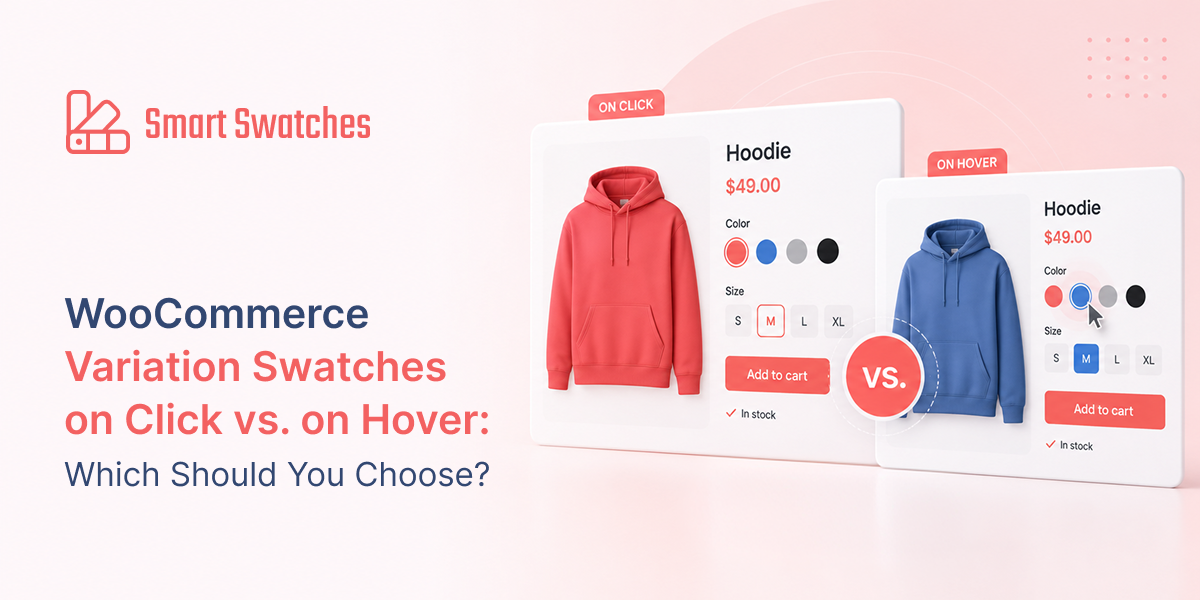

Hover sounds faster and more interactive. But on a smartphone, hover doesn’t exist. Here’s what the setting actually does, where it lives, and the default you should use for nearly every store.
The Setting Most Store Owners Never Notice
You have installed a Variation Swatches plugin, configured your color attributes, and your shop page is looking great. Swatches show up on every product card, the colors are vivid, and everything seems to be working perfectly. Then someone mentions: “Did you know there’s a setting for how swatches activate?”
Most store owners have never seen it. It generally lives inside the Archive / Shop tab in your Variation Swatches plugin, tucked below the more obvious position and alignment controls. It is called “Swatches Activate on” and it offers two choices: On Click and Mouseover.
The question is reasonable: should hovering over a swatch be enough to activate it, or should it require a deliberate click? Hover sounds more dynamic — it could let shoppers browse colors just by gliding their cursor across a product card, without any effort. That sounds like a better user experience. Faster. More fluid. More modern.
Here is the problem. Nearly 60–70% of your shoppers are on a phone. And on a phone, hover simply does not exist.
“Hover sounds like a better experience — until you remember that most of your customers are shopping with their thumb.”
— THE CORE UX REALITY BEHIND THIS SETTING
What Click vs. Hover Actually Does
To understand the setting clearly, it helps to know exactly what “activating” a swatch means in this context.
When a swatch is activated on the shop or archive page, it triggers the selection logic — updating the product image shown on the card to match the chosen variation. For example, if your product card shows a navy shirt by default, activating the Red swatch would switch the card image to the red version of the shirt. This is the key visual behavior shoppers see when they interact with swatches in the browsing grid.
On Click
The shopper has to physically click (or tap, on mobile) the swatch to activate it. The image only changes after a deliberate interaction. This is a direct, intentional action — the shopper chose to select that color, and the product card responds.
Mouseover (Hover)
Simply moving the mouse cursor over a swatch triggers the activation — no click required. The product image updates the moment the cursor passes over each swatch. On a desktop with a mouse, this creates an almost automatic browsing experience: moving the cursor across a row of swatches reveals each color in sequence without any clicks.
The Mobile Problem with Hover
This is the most important thing to understand about this setting, and it is worth being completely explicit about it: hover events do not exist on touchscreen devices.
On a smartphone or tablet, a user interacts with their finger. There is no cursor. There is no “mouseover” concept. When a finger touches the screen, the browser fires a click event — not a mouseover event. This is a fundamental difference in how touch and mouse input work, and no CSS trick or JavaScript workaround fully bridges the gap.
What this means in practice for your WooCommerce store: if you set swatches to activate on Mouseover, mobile shoppers will experience one of two things when they tap a swatch:
In either case, the Mouseover setting provides zero benefit to mobile users. You are configuring an experience that most of your shoppers will never see.
When Hover Actually Makes Sense
It would be unfair to say Mouseover is never useful. There is a specific scenario where it genuinely adds value — and if your store fits that profile, it is worth considering.
The Case for Mouseover: Desktop-First Catalog and Lookbook Stores
If your WooCommerce store operates primarily as a visual catalog — one where products are not purchased directly online, or where the browsing experience is more important than the buying experience — Mouseover can create a fluid, gallery-like feel on desktop. Interior design showrooms, B2B product catalogs, fashion lookbooks, and wholesale suppliers sometimes fall into this category.
In these stores, the audience is often on desktop (a sales agent, a retailer, a design professional), and the goal is to let them glide through a product grid and see color options change dynamically without clicking. It feels less like shopping and more like browsing a digital magazine.
The case against Mouseover: standard retail clothing stores
A fashion store selling directly to consumers does not fit the Mouseover profile. Its shoppers are predominantly on mobile. They browse Instagram, click a link, arrive on the store, and make a purchase decision in under two minutes. The hover experience on desktop is invisible to them. The click experience is what determines whether they convert.
For these stores — which represent the vast majority of WooCommerce clothing brands — Mouseover is a setting that adds complexity without adding any benefit visible to most customers.
Make Every Color Choice Effortless
Replace clunky WooCommerce dropdowns with beautiful color swatches in minutes. Smart Swatches works on every device, requires zero coding, and is free to install — with Pro features available when your store is ready to grow.
Frequently Asked Questions
Quick answers to the most common questions about the Click vs. Hover swatch activation setting.
Q. Should WooCommerce swatches activate on click or on hover?
On Click is the right default for most stores. Hover (Mouseover) does not work on touchscreen devices, and the majority of eCommerce shoppers are on mobile. Click works everywhere — desktop, phone, tablet — and ensures consistent behavior for all your visitors. Only consider Mouseover if your store serves a primarily desktop audience in a catalog or lookbook context.
Q. Does hover work on mobile for WooCommerce swatches?
No. Touchscreens do not have hover events. A finger tap fires a click event, not a mouseover event. Setting your swatches to activate on Mouseover has zero effect on mobile shoppers — they tap, which fires a click, and the behavior defaults to click-based activation anyway. You are not breaking anything for mobile users, but you are also not improving anything. You are simply configuring a setting that most of your visitors will never experience.
Q. Where do I find the click vs. hover setting in Smart Swatches?
It is called “Swatches Activate on” and lives in Smart Swatches → Archive / Shop in your WordPress dashboard. It is a Pro feature and only appears when both Shop/Archive Page Swatches and Catalog Mode are enabled. The free version always uses On Click and does not show this option.
Q. Does this setting affect the product page, or only the shop page?
Shop and archive page only. The single product page always uses click activation, regardless of this setting. The “Swatches Activate on” option applies exclusively to swatches displayed in the shop grid — where shoppers browse products before clicking through to an individual product page. On the product page itself, the shopper always clicks to select a variation. This is intentional: variation selection on a product page is a meaningful, purchase-relevant action that should always require a click.
Q. Is this setting available in the free version of Smart Swatches?
No. The “Swatches Activate on” setting is a Smart Swatches Pro feature. In the free version, swatch activation is always On Click — it is hardcoded in the plugin. This is the correct default behavior, and the free version’s approach is right for the vast majority of stores. If you want the option to switch to Mouseover for a catalog-style store, that control is available in Pro.

Leave a Reply