
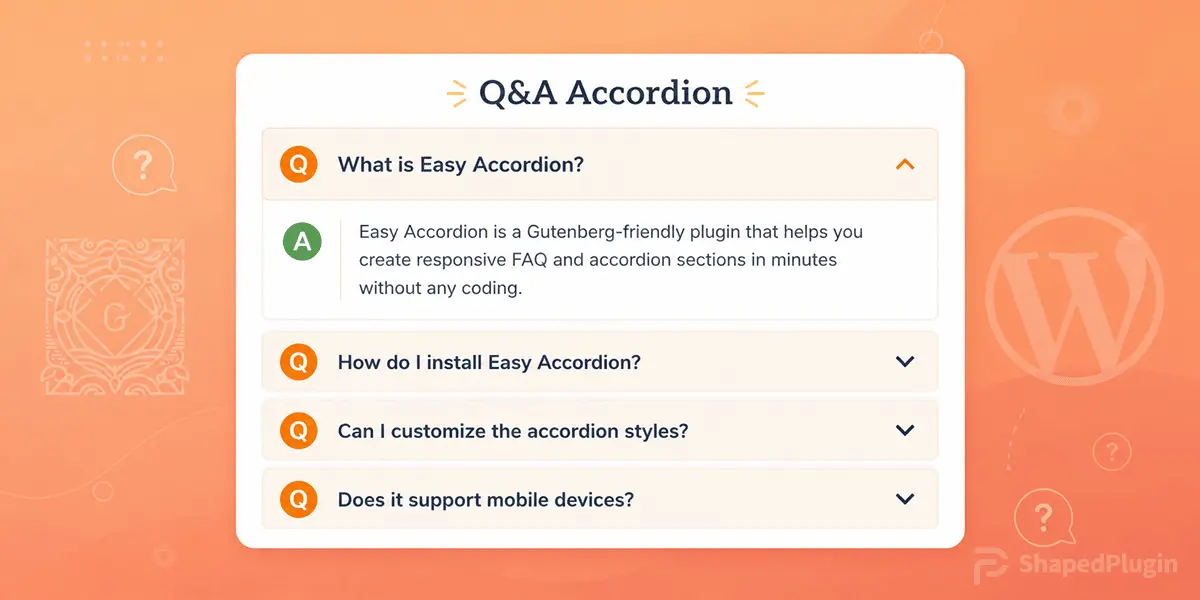

Are you switching from the Classic Editor to Gutenberg and struggling to build clean, responsive FAQ sections? Easy Accordion makes it simple & without coding.
While Gutenberg improves content editing, it lacks flexible tools for structured FAQs. Easy Accordion solves this with 10+ advanced accordion blocks, allowing you to create responsive FAQs & display them in clean, collapsible sections that improve readability, mobile navigation, and user engagement.
In this guide, you’ll learn a step-by-step guide to create responsive FAQs in Gutenberg.
Why Do You Need Responsive FAQs?
In this competitive edge, if you stick with long FAQ pages, you might lose customer attention, reducing conversions and increasing bounce rates. To stay ahead of the competition, creating responsive FAQs is a modern way to improve content usability and user experience.
Let’s see an example of a responsive FAQs section.
- Save Space Without Losing Information: Instead of displaying long blocks of text, responsive FAQs organize content into collapsible sections, keeping pages clean and structured.
- Improve User Experience: Visitors can quickly scan questions and expand only what they need, making navigation faster and more intuitive.
- Reduce Cognitive Load: Breaking content into individual questions helps users focus on one answer at a time, improving clarity and understanding.
- Enhance Mobile Browsing: Responsive FAQ layouts adapt to all screen sizes, making it easier for mobile users, allowing them to explore your content easily.
- Keep Content Structured and Engaging: Compared to static text, interactive FAQs keep your content organized while adding a dynamic look across your website.
Easy Accordion: A Better Way to Build FAQs Section in Gutenberg
As the world’s #1 FAQ Builder & Accordion plugin, Easy Accordion extends to newly branded Gutenberg-friendly Accordion blocks. With 70+ ready patterns, templates, icons, animations, schema support, and flexible customization options, it is designed to create clean, responsive FAQ sections without coding.
Key Features of EA FAQ Builder:
- 10+ Advanced Blocks for building Visual Accordions
- Vertical Accordion layout optimized for Standard FAQs
- Horizontal Accordion option for compact FAQ designs
- Smooth Expand/Collapse Icons interaction for better UX
- Fully Responsive behavior across all devices
- Nested (multi-level) FAQ structure for grouped questions
- Icon styles to clearly indicate expandable questions
- Typography controls for readable question and answer formatting
- FAQ schema support for SEO-friendly content structure
- Lightweight performance for fast-loading FAQ sections
- Easy customization of spacing, colors, and layout
It helps you turn long question-and-answer content into structured, collapsible layouts that improve readability and mobile usability. Follow the simple steps below and start creating your FAQs in minutes.
4 Easy Steps to Create Responsive FAQs in Gutenberg
To create responsive FAQ sections in Gutenberg with Easy Accordion is straightforward. With multiple accordion blocks, you can use either vertical or horizontal layouts, depending on your design needs.
Step 1: Install Easy Accordion
This world’s best FAQ builder plugin is trusted by 100,000+ users and comes with multiple Accordion & FAQs templates, including Vertical, Horizontal, Image, Slider, Post, Product, Media, Menu, Category, Sidebar Tab & Nested/Multi-level styled accordions.
To get started, install and activate Easy Accordion on your WordPress site and follow the quick setup guide to create responsive FAQs in minutes.
Step 2: Create Your FAQs Block
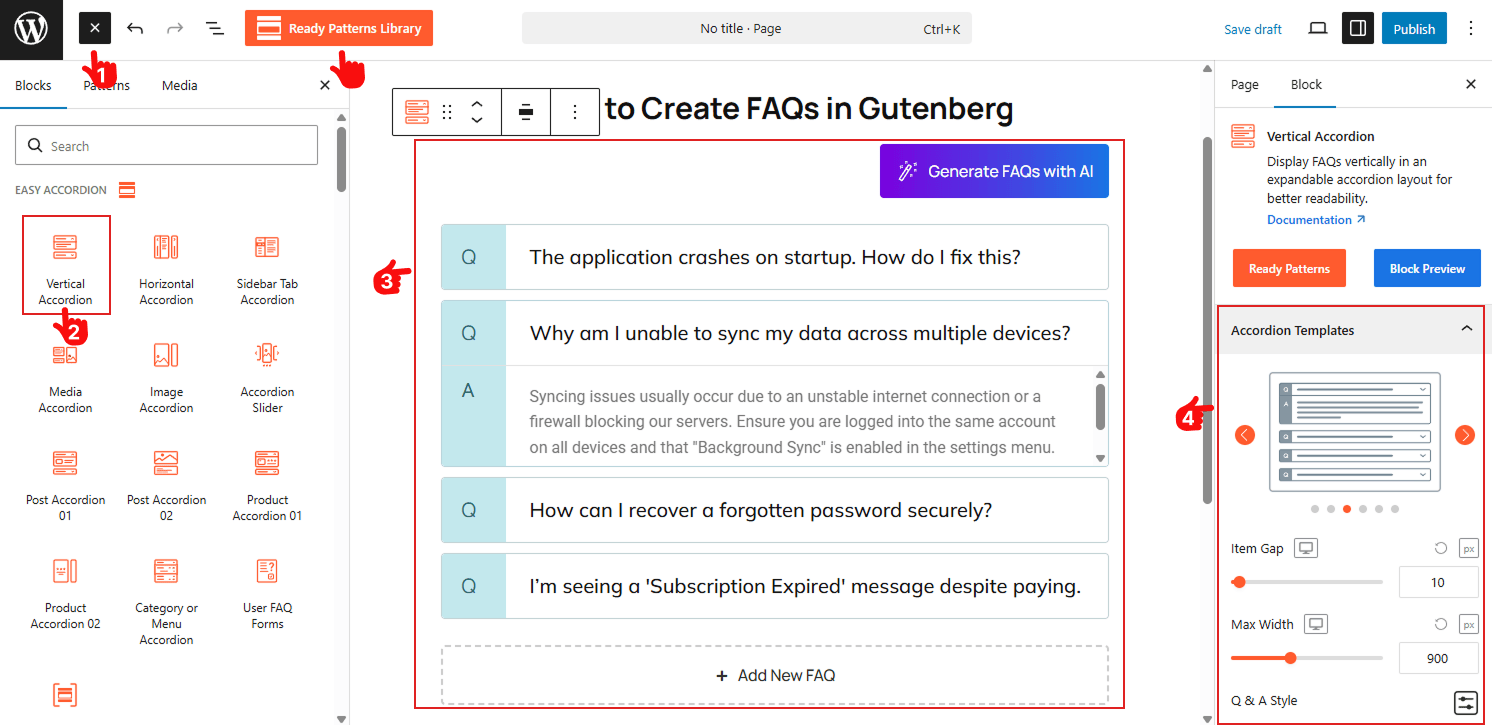
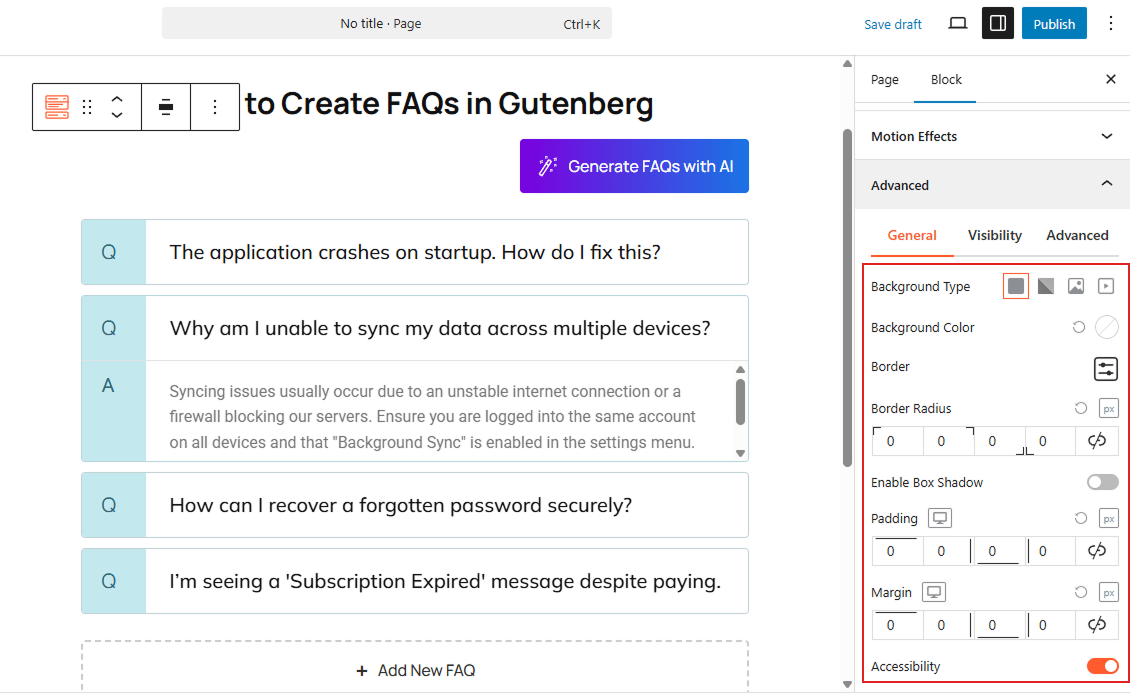
- Open the page or post you want to add FAQs to in the Gutenberg editor.
- Search for the Easy Accordion blocks or use the Pattern Library, and find Vertical or Horizontal Accordion.
- Insert into the Gutenberg Editor and customize as needed with visual panels.
- Choose from modern templates, including Standard, Numbered, Q & A, Timeline, and Minimalist styles to fit your brand.
Step 3: Add FAQ Content & Customize with Interactions
- Insert your questions and answers into the accordion items.
- Enable Live FAQ Search Bar, Toggle All Button, AJAX Pagination, and FAQ Schema Markup as per your preference.
- Add collapsible Toggle Icons, set the accordion content height, and Motion Effects.
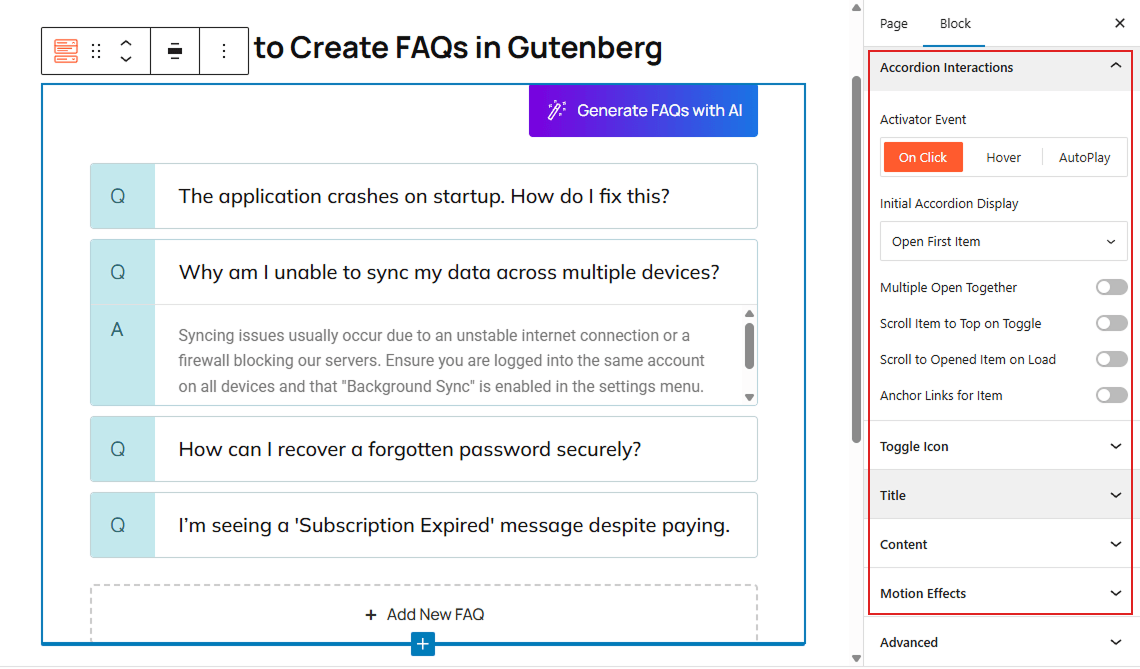
Each item works as a collapsible FAQ, allowing users to expand only what they need.
Moreover, you can customize single FAQ items, including adding Featured Icons, Badges, Subtitles, and Style as needed.
Step 4: Style FAQs Section & Publish
- Adjust styling options such as typography, spacing, icons, and interaction behavior as needed
- Once everything is set, preview your FAQ section and publish it.
Pro Tips: Learn Best Practices to create an FAQ section for your business.
Final Words:
Responsive FAQs are not just a design upgrade — they directly impact how users find answers, interact with your content, and stay engaged on your site. And, in Gutenberg, you can create them easily with Easy Accordion’s newly introduced FAQs & Accordion blocks, turning long, static text into structured, collapsible sections that are easier to scan and use, especially on mobile.
So why wait? Download Easy Accordion & create fully responsive FAQ sections in Gutenberg using ready blocks, templates, and rich customization options.

Leave a Reply